
If your WordPress site is the engine of your business, Technical SEO is the fine-tuning that ensures you don’t break down on the highway. For Malaysian SMEs, a technically broken site means losing local leads to a competitor whose site simply “works” better in Google’s eyes.
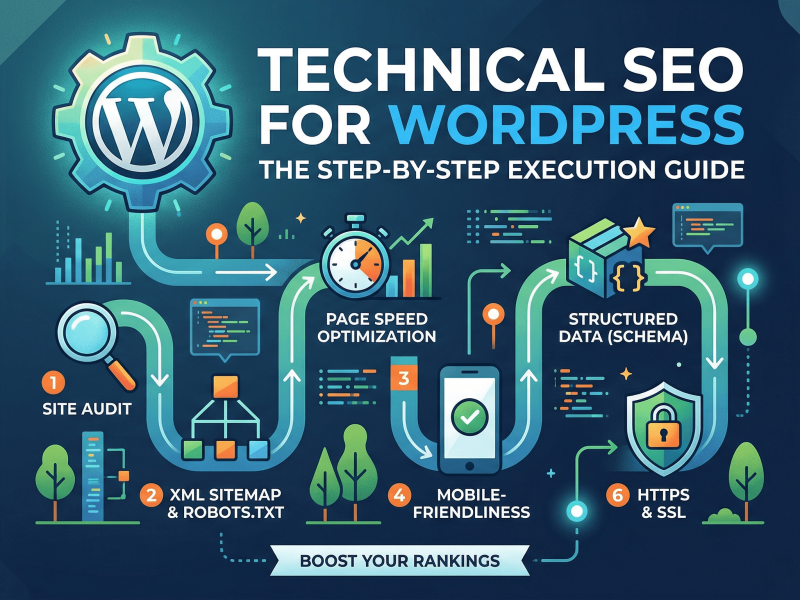
In our Ultimate SEO Guide for Malaysian SMEs, we covered the “why.” This guide covers the “how.” Here is your step-by-step manual for optimizing the 8 critical technical elements of WordPress.
1. HTTPS Encryption (The Security Standard)
Google treats security as a non-negotiable ranking signal. If your site says “Not Secure” in the Chrome browser, your bounce rate in Malaysia will skyrocket.
How to change it:
- Get an SSL: Log into your hosting provider (e.g., Exabytes, Shinjiru). Most offer a free “Let’s Encrypt” SSL. Activate it in your hosting cPanel.
- Update WordPress Settings: Go to Settings > General.
- Change URLs: Ensure both “WordPress Address” and “Site Address” start with https:// instead of http://.
- Force HTTPS: Install the Really Simple SSL plugin if you still see “mixed content” errors.
2. URL Structure (Permalinks)
A “clean” URL tells Google exactly what a page is about before the bot even crawls it.
How to change it:
- Go to Settings > Permalinks.
- Select “Post name.” This changes your URL from ?p=123 to yourdomain.com/sample-post/.
- Custom Slugs: When writing a page, look at the sidebar under “URL.” Shorten it to your target keyword. For a clinic in PJ, use /dental-clinic-petaling-jaya/ rather than a long, auto-generated title.
3. Robots.txt (The Crawler’s Map)
This file tells search engines which parts of your site they are allowed to visit.
How to change it:
- Install Rank Math or Yoast SEO: These plugins make editing this file easy.
- In Rank Math: Go to General Settings > Edit Robots.txt.
- The Ideal Setup: Ensure you aren’t accidentally “disallowing” your main content. A standard SME setup should look like this:
- User-agent: *
- Disallow: /wp-admin/
- Allow: /wp-admin/admin-ajax.php
- Sitemap: https://yourdomain.com/sitemap_index.xml
4. Meta Robots Tag (Index vs. Noindex)
Sometimes you have pages you want on your site but off Google (like a “Thank You” page or a private staff portal).
How to change it:
- Open the specific Page or Post in WordPress.
- Scroll down to your SEO Plugin Meta Box (Rank Math/Yoast).
- Go to the Advanced/Advanced Tab.
- Check “Noindex” if you want to hide the page from search results. Check “Nofollow” if you don’t want Google to follow any links on that specific page.
5. Canonical Tags (Preventing Duplicates)
If you have similar content on different URLs, Google might penalize you for “duplicate content.” A canonical tag tells Google which version is the “Master” copy.
How to change it:
- Automatic: Most SEO plugins add these automatically to every page, pointing to itself.
- Manual: If you have two very similar service pages, go to the “Advanced” tab of the SEO plugin on the duplicate page. Find the “Canonical URL” field and paste the link to the original page you want to rank.
6. Redirection Chains and Loops
Broken links (404 errors) or long chains of redirects frustrate users on slow Malaysian mobile networks.
How to change it:
- Install the “Redirection” Plugin.
- Monitor 404s: Use the plugin to see which URLs people are hitting that don’t exist.
- Create 301 Redirects: If you change a URL from /old-service/ to /new-service/, set up a 301 redirect.
- Avoid Chains: Always redirect directly to the final destination. Don’t go A → B → C. Go A → C.
7. Schema Markup (Structured Data)
Schema helps you get those “Star Ratings” and “Price” info directly in Google search results.
How to change it:
- In Rank Math: Go to Titles & Meta > Local SEO.
- Fill in your Business Type, Opening Hours, and Phone Number.
- Page-Specific Schema: For a blog post, select “Article” schema. For a service, select “Service” schema. This code is generated automatically by the plugin but requires you to fill in the data fields correctly.
8. Core Web Vitals (The Speed Test)
Google measures how fast your site loads (LCP), how quickly it responds (FID), and if the layout jumps around (CLS).
How to change it:
- Test your site: Use Google PageSpeed Insights.
- Optimize Images: Use a plugin like Imagify or Smush to compress images. Large files are the #1 reason Malaysian sites are slow.
- Caching: Install WP Rocket or W3 Total Cache. This creates a “static” version of your site that loads instantly.
- Hosting: If you are on a cheap RM10/month shared host, your Core Web Vitals will likely never be “Green.” Consider upgrading to a VPS or managed WordPress hosting if you are serious about ranking.
Summary Checklist for Technical Health
| Technical Element | Action Tool | Difficulty |
| HTTPS | Hosting cPanel | Medium |
| Permalinks | WordPress Settings | Easy |
| Robots.txt | Rank Math / Yoast | Medium |
| Canonicals | SEO Plugin (Advanced) | Hard |
| Redirections | Redirection Plugin | Easy |
| Schema | SEO Plugin (Schema Tab) | Medium |
| Core Web Vitals | WP Rocket / Smush | Hard |
Technical SEO is the digital foundation of your business. If these steps feel too complex, remember that you don’t have to do them alone. At Hypercharge, we handle the “under-the-hood” work so you can focus on running your business.
Ready for a Technical Tune-up?
We offer comprehensive technical audits for WordPress sites. Contact Hypercharge today to see how we can speed up your site and help with SEO of your website.