
A renovation contractor in Shah Alam builds a new website, publishes five service pages, and waits. Two weeks later, they type their business name into Google. Nothing appears. They call their web developer, who says the website is live and working perfectly. They call an SEO agency, who says they need to “do SEO.” Neither explains what is actually happening — or why.
The website is live. Google just doesn’t know it exists yet.
This is one of the most misunderstood aspects of how search works. Having a live, functioning website and having a website that appears in Google are two entirely separate things. Between your website going live and your pages appearing in search results, Google has to complete a three-stage process that most business owners — and surprisingly, many web developers — have never had explained to them clearly.
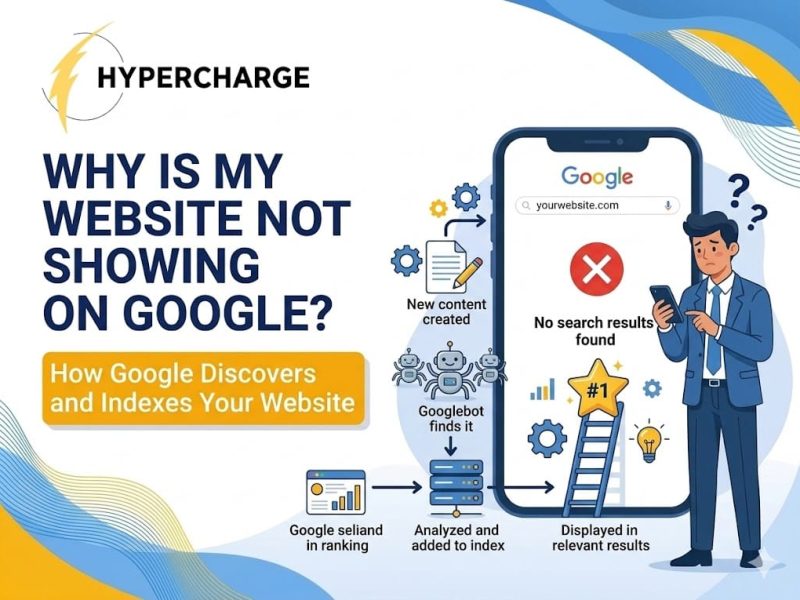
Google discovers your website through links, sitemaps, and direct URL submissions. It then sends a crawler called Googlebot to read your pages and decide whether to add them to its index — the database of pages eligible to appear in search results. Only indexed pages can rank. If Google can’t crawl or understand your pages, they will never appear in search results, regardless of their content quality.
Understanding this process is not a technical luxury. It is the foundation that every other SEO activity depends on.
📌 Key Takeaways
- Google operates a three-stage process for every webpage: discovery, crawling, and indexing — your page must pass all three before it can appear in search results
- Being “live” on the internet does not mean Google has found or indexed your pages
- The most common reason Malaysian business websites don’t appear on Google: noindex tags left on from development, or pages with no internal links pointing to them
- Google Search Console’s Index Coverage Report and URL Inspection Tool show you exactly which pages are indexed and why others aren’t
- You can manually request Google to crawl and index a specific URL using the URL Inspection Tool — this speeds up the process for important new pages
- Indexing and ranking are different things — a page can be indexed but rank poorly; fixing indexing problems is the prerequisite to ranking improvement
The Three-Stage Process: Discovery, Crawling, Indexing
According to Google’s official explanation of how Search works, the path from a webpage existing on the internet to that page appearing in search results involves three distinct stages. Each stage is a separate decision by Google — and a failure at any stage means the page doesn’t make it to the next one.
Stage 1 — Discovery: How Google Finds Out Your Page Exists
Google cannot index a page it doesn’t know about. Discovery is the process by which Google first becomes aware that a URL exists.
There are three primary discovery mechanisms:
Links from already-indexed pages. If an existing webpage that Google has already crawled contains a link to your new page, Google’s crawler will follow that link and discover the new URL. This is why internal links are so important — not just for user navigation, but as a signalling system that tells Googlebot where to go next. A new service page that no other page on your website links to is essentially hidden from Google’s natural discovery process.
XML sitemaps. An XML sitemap is a structured file that lists all the URLs on your website you want Google to crawl and index. Submitting a sitemap through Google Search Console tells Google directly: “here are the pages I want you to know about.” Google doesn’t guarantee it will index everything in a sitemap — but it does guarantee it will at least check them.
Direct URL submission. Through the URL Inspection Tool in Google Search Console, you can submit individual URLs and request that Google crawl and index them. This is the fastest manual trigger available to website owners and is particularly useful when you’ve published important new content and want Google to find it promptly.
For a brand-new website with no backlinks and no sitemap submitted, Google may take weeks or months to discover it naturally through link following — if it discovers it at all. Setting up Search Console and submitting a sitemap is the first action any Malaysian business should take after launching a new website.
Stage 2 — Crawling: What Googlebot Actually Does When It Visits
Once Google discovers a URL, it schedules a visit from Googlebot — its automated web crawler. Googlebot visits the URL, downloads the page content, follows any links it finds to discover additional URLs, and sends the page data back to Google’s systems for processing.
Several things determine how thoroughly and how frequently Googlebot crawls your site:
Crawl budget. Google allocates a crawl budget to each website — roughly, the number of pages it will crawl within a given timeframe. Large, authoritative websites get generous crawl budgets. Small, new websites get limited ones. If your website has 500 pages but Google only crawls 50 per visit, it may take multiple crawl cycles before all your pages are processed. This is one reason thin, low-value pages are worth removing — they consume crawl budget without contributing to your indexing goals.
Page accessibility. Googlebot must be able to access your pages. A page blocked by your robots.txt file, protected by a login, returning a server error, or timing out due to slow load times will not be successfully crawled regardless of how important it is.
Rendering. After downloading your page, Google renders it — processing your HTML, CSS, and JavaScript to understand what the page actually looks like and contains. This is particularly relevant for websites built on JavaScript-heavy frameworks, where the meaningful content only appears after JavaScript executes. If Google can’t render your JavaScript correctly, it may index a blank or partial version of your page.
Stage 3 — Indexing: The Decision to Include (or Exclude) Your Page
After crawling, Google evaluates whether the page should be added to its index. The index is the database from which search results are drawn — only indexed pages can appear in search results.
Google’s indexing decision is based on several factors: the quality and uniqueness of the content, whether the page has a noindex directive, whether the page is canonical (the preferred version among potential duplicates), and whether the content appears to provide genuine value to searchers.
A page that passes Google’s indexing threshold is added to the index and becomes eligible to rank. “Eligible to rank” does not mean it will rank well — that depends on the entirety of your SEO, content quality, and authority. But it is the necessary precondition.
A page that fails — due to thin content, duplicate content, noindex tags, or technical errors — is excluded from the index and cannot appear in any search result for any query.
Why Some Pages Never Get Indexed — And How to Find Out
The first step in any indexing investigation is understanding your current status. Two tools in Google Search Console give you this picture.
The Index Coverage Report in Google Search Console
Navigate to Search Console → Indexing → Pages. This report shows you:
- Indexed — Pages Google has successfully added to its index
- Not indexed — Pages Google has found but decided not to index, with specific reasons listed (duplicate content, crawled but not indexed, noindex tag detected, etc.)
- Errors — Pages Google tried to crawl but encountered technical problems
The “Not indexed” section is where most diagnostic information lives. Google groups non-indexed pages by reason, making it straightforward to identify systemic issues. If you see 40 pages flagged as “Duplicate, submitted URL not selected as canonical,” that tells you a specific technical problem to investigate. If you see “Crawled — currently not indexed,” it indicates Google reached the page but found the content insufficient to merit inclusion.
The URL Inspection Tool
For individual pages, the URL Inspection Tool (accessible from the top search bar in Search Console) gives you a real-time status check: is this specific URL indexed? When was it last crawled? What did Google see when it crawled it? Were any errors detected?
This tool is the fastest way to diagnose why a specific important page — your homepage, a key service page, a new blog post — isn’t appearing in search results. Run it on your most important pages first, then work through any non-indexed pages identified in the Coverage Report.
The Most Common Indexing Blockers on Malaysian Business Websites
In practice, the same handful of problems account for the majority of indexing failures on Malaysian SME websites.
Noindex Tags Left On After Development
This is the most common and most avoidable indexing problem. During website development, developers typically add a noindex directive to the entire site — it prevents Google from indexing an unfinished website while it’s being built. The problem arises when the site launches and nobody removes the noindex setting.
The result: a fully live, publicly accessible website that Google is explicitly instructed to ignore. The developer sees a working website. The business owner assumes it’s on Google. Neither checks. Months pass.
In WordPress, this setting lives under Settings → Reading → “Discourage search engines from indexing this site.” It’s a single checkbox. Check it on your own site right now. If that box is ticked, untick it immediately and submit your sitemap.
For a comprehensive checklist of why WordPress websites don’t show on Google — including this and several other common blockers — that article covers the full diagnostic process.
Robots.txt Blocking Googlebot
Your robots.txt file is a text file at the root of your domain (yourwebsite.com/robots.txt) that tells crawlers which parts of your site they’re permitted to access. A misconfigured robots.txt can accidentally block Googlebot from entire sections of your website.
According to Google’s guide on how to use robots.txt correctly, a Disallow: / directive in your robots.txt blocks Googlebot from crawling everything. This is a legitimate setting during development — and a catastrophic one if left in place after launch.
Check your robots.txt file directly by visiting yourdomain.com/robots.txt in your browser. If you see Disallow: / under User-agent: * or User-agent: Googlebot, that’s a critical blocker to fix immediately.
Orphan Pages With No Internal Links
An orphan page is a page on your website that no other page links to. Because Googlebot primarily discovers new URLs by following links, a page that exists in isolation — no internal links pointing to it, not in your sitemap — may never be found.
This happens regularly on Malaysian business websites when new service pages or blog posts are published without updating any existing pages to link to them. The page goes live. Nobody links to it internally. It sits in the dark.
Understanding how internal linking supports Google’s crawling and discovery process explains why building internal links to every new page — on the day of publication — is a non-negotiable publishing habit, not an optional optimisation task.
Thin or Duplicate Content
Google’s indexing decision is partly a quality judgement. Pages with very little unique content — a service page with two sentences and a phone number, a location page that repeats the same template with just the city name changed — are frequently “crawled but not indexed.” Google visits the page, processes it, and decides it doesn’t add enough value to the index to be worth including.
Duplicate content creates a related problem. If multiple pages on your site have substantially similar content, Google selects one version to index (the canonical) and may exclude the others. This is particularly common on Malaysian home service websites that create dozens of near-identical city pages.
Slow Page Load Times
Extremely slow pages — those that time out or take more than 10–15 seconds to load — may be abandoned by Googlebot mid-crawl. If Googlebot can’t successfully download your page within a reasonable timeframe, it’s marked as a crawl error and the content isn’t processed for indexing.
This connects directly to the broader picture of Core Web Vitals and page speed optimisation — speed issues affect both user experience and Googlebot’s ability to access your content. A page Google can’t load is a page Google can’t index.
How to Speed Up Google’s Discovery of New Pages
When you publish something important — a new service page, a key blog article, an updated case study — you don’t have to wait passively for Google to find it. Three actions accelerate the process.
Submit an XML Sitemap
An XML sitemap is a file that lists all the URLs on your website you want Google to index. According to Google’s guide to sitemaps, submitting a sitemap in Search Console tells Google directly which pages exist and when they were last updated — effectively handing Google a map rather than expecting it to navigate your site by following links alone.
WordPress SEO plugins — Rank Math, Yoast SEO — generate and update XML sitemaps automatically. Submit the sitemap URL in Search Console under Indexing → Sitemaps. Do this once; it stays live and updates automatically as you publish new content.
Use the URL Inspection Tool to Request Indexing
For any specific page you want Google to find quickly, paste the URL into the URL Inspection Tool in Search Console and click “Request Indexing.” This pushes the URL into Google’s priority crawl queue. It typically results in Googlebot visiting the page within a few hours to a few days — significantly faster than waiting for natural discovery.
Use this for your most important pages: new service pages, updated pages, blog posts you want indexed quickly. Don’t use it on every page of your site indiscriminately — it’s most valuable for prioritised individual URLs.
Build Internal Links to New Pages Immediately
When you publish a new page, update at least two or three existing pages to include a contextual link to it. This creates an immediate internal discovery path — when Googlebot next visits those existing pages (which it does regularly if they’re already indexed), it will follow the new link and discover the new page.
This habit costs three minutes per new page published and significantly compresses the time between publication and discovery. It also contributes to the broader internal linking strategy that distributes authority across your site — so the discovery benefit compounds with the SEO authority benefit.
How Long Does Indexing Actually Take?
For new pages on established websites with regular Googlebot visits, indexing typically takes one to fourteen days after the URL is discovered — faster if you submit it via the URL Inspection Tool, slower if Googlebot has to find it through natural link following.
For brand-new websites with no authority and no backlinks, the timeline is longer. Google may take several weeks to complete an initial crawl, and the indexing of individual pages may take additional weeks after that. This is the legitimate reason why SEO on a new website takes time — not all of it is about rankings. Some of it is simply waiting for Google to find and evaluate your content.
Several factors compress the timeline: submitting a sitemap early, building internal links consistently, getting external websites to link to you (even one link from an established site dramatically accelerates Google’s discovery of your domain), and ensuring there are no technical blockers preventing crawling.
What Indexing Is Not — Clearing Up Common Misconceptions
Indexing is not ranking. Being in Google’s index means your page is eligible to appear in search results. It doesn’t mean it will rank on page one — or on page ten. Indexing is a prerequisite; ranking is the outcome of everything that comes after.
Paying for Google Ads does not affect indexing. Organic search and paid search are entirely separate systems. Running Google Ads campaigns has no influence on whether or how quickly Google indexes your organic pages.
Submitting your URL guarantees indexing. It doesn’t. Requesting indexing through the URL Inspection Tool asks Google to crawl the page — Google still makes its own quality assessment and may decline to index it if the content doesn’t meet its standards. The submission accelerates the visit; it doesn’t override the quality filter.
A page appearing in search results for your business name means it’s properly indexed. Sometimes. Branded searches can surface pages that aren’t fully indexed for broader queries. Always check the URL Inspection Tool for the specific page rather than assuming search appearance means full indexing.
For the complete picture of how indexing fits into a full SEO strategy — and what comes after your pages are indexed — the comprehensive Malaysia SEO guide covers the full cycle from technical foundation through to content and authority building.
Frequently Asked Questions
The fastest method: type site:yourdomain.com/specific-page-url into Google search. If the page appears in the results, it’s indexed. If it doesn’t, it may not be indexed — or Google may have found it but not yet displayed it through the site: operator, which can be unreliable. For a definitive answer, use the URL Inspection Tool in Google Search Console, which shows the actual indexing status and the last crawl date.
Indexing and ranking are separate stages. Being indexed means your page is in Google’s consideration set for relevant queries. Ranking well means your page is being evaluated as more relevant and authoritative than competing pages for those queries. The gap between indexing and strong rankings is where content quality, keyword alignment, E-E-A-T signals, backlinks, and technical SEO all come into play. A page can be indexed for three years and rank on page seven if those factors haven’t been developed.
Yes — and sometimes you should. Pages like admin dashboards, thank-you pages after form submissions, internal search result pages, and duplicate content pages are better excluded from Google’s index. You can prevent indexing using a <meta name=”robots” content=”noindex”> tag in the page’s HTML, or by adding a Disallow directive in robots.txt (though robots.txt prevents crawling, not indexing — noindex tags are more reliable for excluding specific pages). Just ensure these exclusions are intentional and not accidentally applied to pages you do want indexed.
Not necessarily. Google makes its own quality and priority judgements about which pages deserve to be in its index. Very thin pages, heavily duplicated content, and pages with minimal unique value may be crawled but not indexed. Large websites may find that Google indexes a subset of their total pages based on crawl budget allocation. This is one reason content quality matters even at the page level — not just for rankings, but for getting into the index in the first place.
Crawling is the act of Googlebot visiting and downloading your page. Indexing is Google’s decision to add the page to its searchable database. A page can be crawled without being indexed — Google visits it, reads it, and decides not to include it. A page that isn’t crawled can’t be indexed. The two terms are sometimes used interchangeably in casual conversation but describe distinct stages in the process.